> For the complete documentation index, see [llms.txt](https://docs.syntho.ai/llms.txt). Markdown versions of documentation pages are available by appending `.md` to page URLs; this page is available as [Markdown](https://docs.syntho.ai/configure-a-data-generation-job/privacy-dashboard.md).
# Main hub
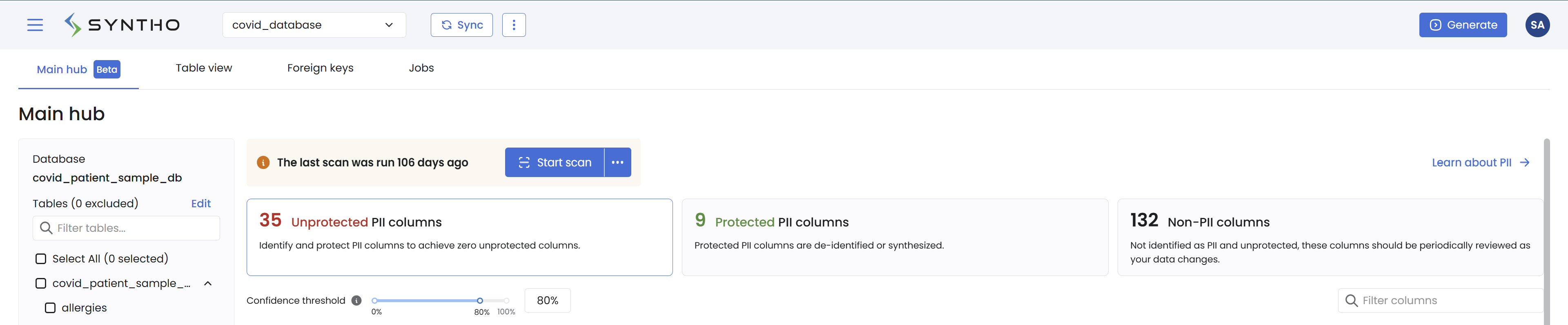
Use the **Main Hub** to review and configure sensitive data protection across your workspace.
## Navigate the Main Hub
The workspace has two relevant tabs:
* **Main Hub** lists columns and their protection status. Configure generators and sensitivity classification here.
* **Table view** shows the table structure. Columns marked as **Sensitive** display a sensitive icon in the header.
Within the **Main Hub**, first select the tables to review. Then use status tiles or filters to narrow the column list.
## Select tables
The left-side **Table selection menu** lists every table and view. Select the tables whose columns you want to display and configure.
Click **Edit** to include or exclude tables:
* **Include** transfers the table's data to the destination database.
* **Exclude** prevents the table's data from being transferred.
{% hint style="info" %}
Use **Bulk** to include or exclude several tables at once.
{% endhint %}
## Find columns by protection status
Overview of protection statuses of columns
### Status tiles
Status tiles provide common **Privacy classification** filter combinations.
| Tile | Sensitivity classification | Protection status | Included tables |
| ------------------------- | -------------------------- | ----------------- | --------------- |
| **Protected sensitive** | Sensitive | Protected | Yes |
| **Unprotected sensitive** | Sensitive | Unprotected | Yes |
| **Non-sensitive** | Non-sensitive | All | Yes |
Only one tile can be active. Select a tile to apply its filters. Select it again to clear them.
Tiles stay synchronized with the **Privacy classification** filters. A matching filter combination activates its tile. Changing that combination deactivates the tile.
Other filters do not affect tile activation. To view all sensitive columns, select **Sensitive** and **All**. No tile becomes active.
The list refreshes after a column's classification or protection changes. Columns no longer matching the filters disappear.
## Filter columns
Use **Filters** next to the column-name search to narrow the column list. Changes update the list immediately.
### Privacy classification
Use these filters to define the protection status. Status tiles use these same filters.
* **Sensitivity status:** Select **All**, **Sensitive**, or **Non-sensitive**.
* **Protection status:** Select **All**, **Protected**, or **Unprotected**.
* **Table status:** Select **All**, **Included tables**, or **Excluded tables**.
### Other column filters
Use these filters to refine the current results:
* **Has generator suggestions:** Include or exclude columns with generator suggestions.
* **Database data type:** Include or exclude database data types.
* **Internal data type:** Include or exclude internal data types.
* **Sensitivity scan confidence:** Set a confidence range.
* **Applied generators:** Include or exclude applied generators.
Each option shows its matching column count where applicable.
### Constraints and key filters
Use **Column constraints** to filter by these values:
* **Nullable:** Select **All**, **Nullable**, or **Not nullable**.
* **Unique:** Select **All**, **Unique**, or **Not unique**.
Use **Key types** to filter key columns:
* **Key:** Select **All**, **Key (PK / FK)**, or **Non-key**.
* **Foreign key:** Select **All**, **Part of FK**, or **Not part of FK**.
Use the search field to find filter options. It does not search column names.
Filter options and counts respond to your selections. This keeps only relevant options available.
All filters are off by default. The Main Hub then shows every column in the selected tables. Filters remain active for your workspace until you select **Clear all filters**.
Select **Clear all filters** to restore the default view. Previously selected columns remain visible until deselected. You can continue bulk actions without losing that selection.
## Understand column states
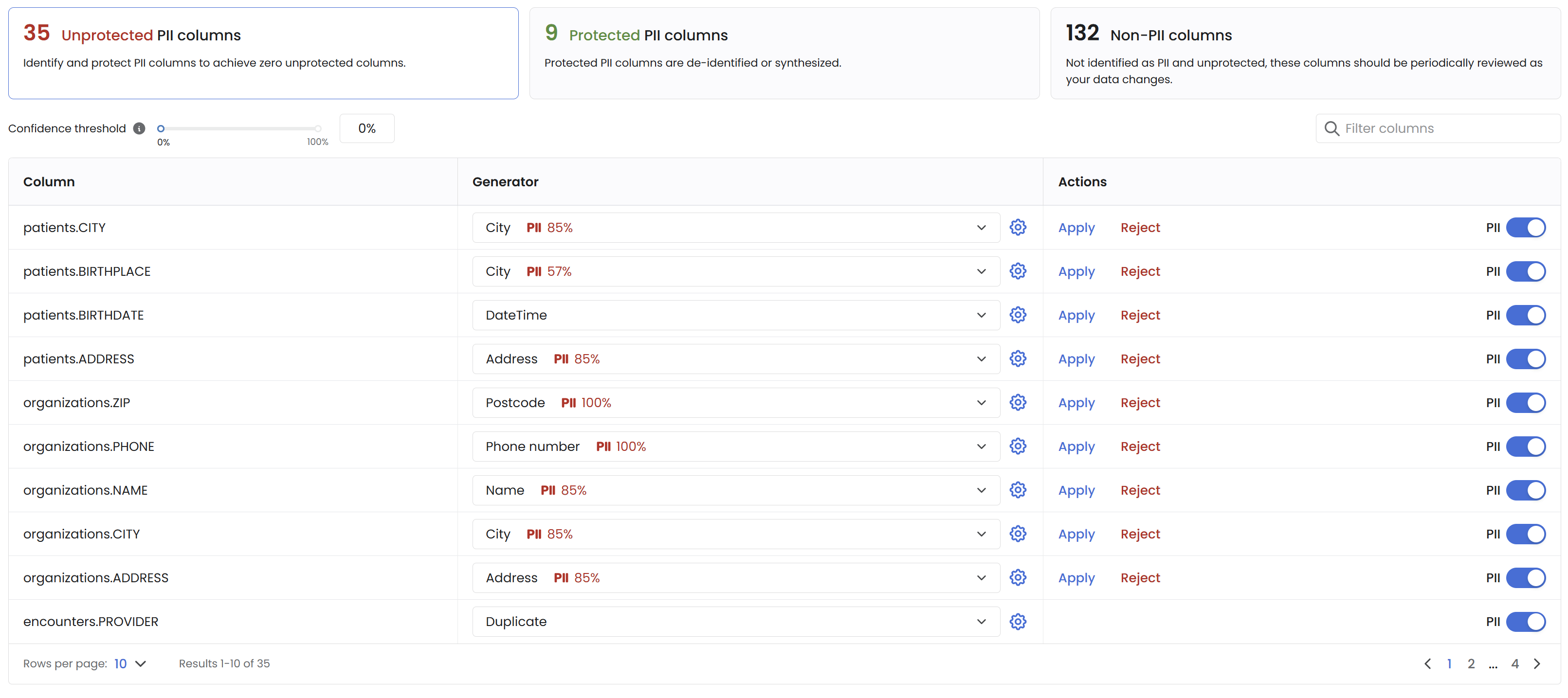
### Unprotected sensitive columns
These columns contain identified sensitive data but are not protected. Protect them by assigning a generator.
Unprotected sensitive columns
#### Confidence scores
Review sensitivity scan confidence scores before protecting a column. Scores appear beside the suggested generator.
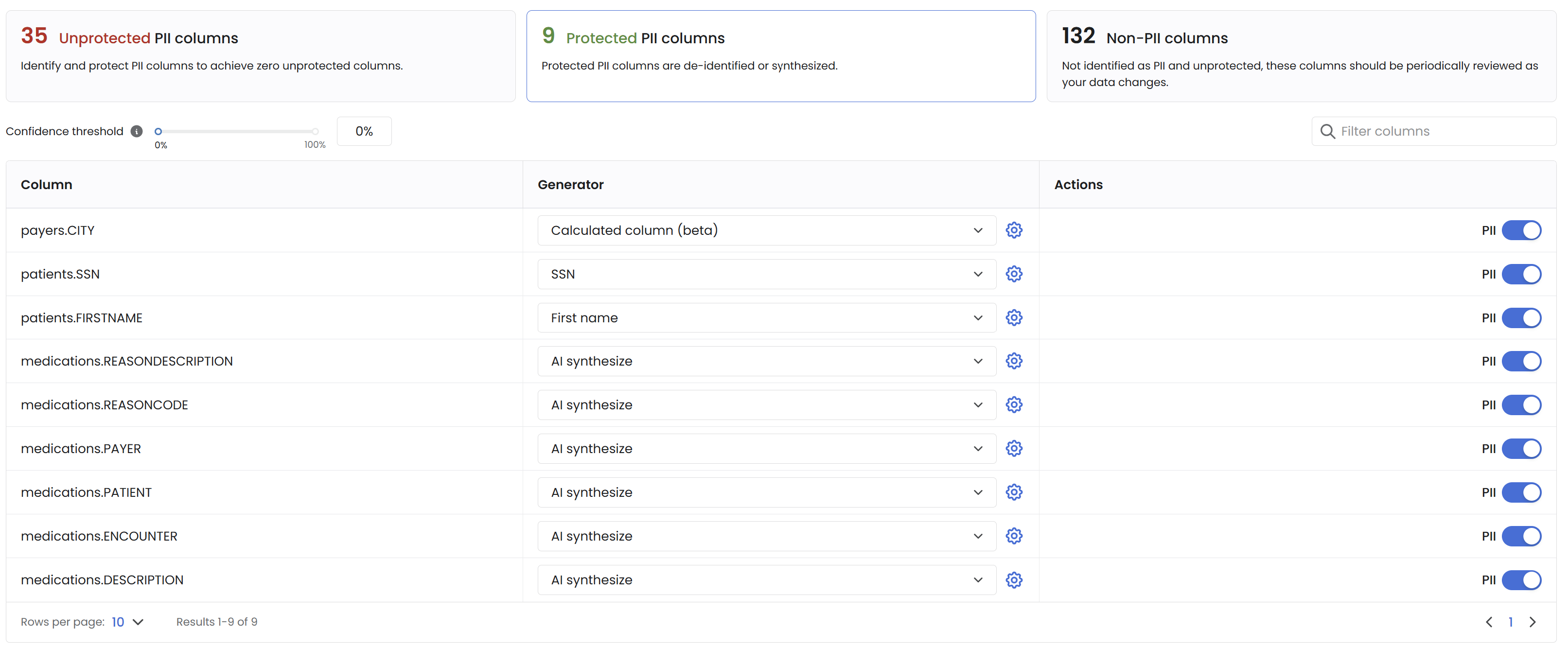
### Protected sensitive columns
These columns use Syntho generators for protection. Examples include mock birthplace data, driving licenses, maiden names, or hashed IDs.
Protected sensitive columns
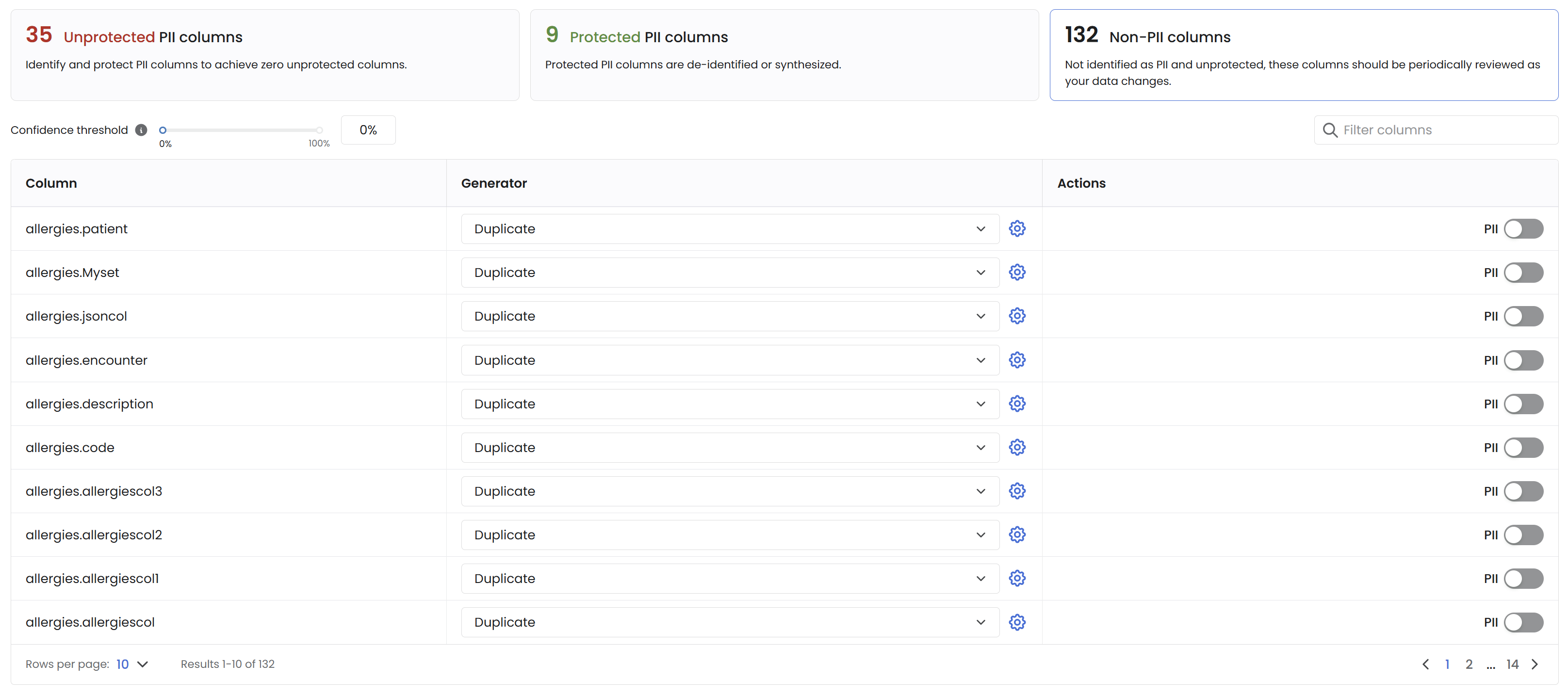
### Non-sensitive columns
These columns are classified as not containing sensitive data. Review them when your data or schema changes.
Non-sensitive columns
## Mark or unmark sensitive columns
You can mark columns as sensitive manually or with Syntho's sensitivity scanner.
To mark a column manually:
* Select the **Sensitive** toggle beside the column.
Selecting column
* In **Column Parameters**, select **Mark as sensitive**. Click **Confirm** and confirm the generator selection.
Select generation method
New sensitive columns appear in the matching Main Hub status. They also show a sensitive icon in **Table view**.
{% hint style="info" %}
The sensitivity scanner identifies many sensitive columns. Review your data for columns it may miss.
{% endhint %}
## Configure columns
Apply and configure generators from the **Main Hub**:
1. Open the **Generator** dropdown to apply a generator with default settings.
2. Select the gear icon to adjust generator parameters in **Column settings**.
3. Use **Apply** or **Reject** in **Actions** for generator suggestions.
### Bulk apply generators
Bulk options let you manage schemas, tables, and columns together.
#### Schemas and Tables
* **Select All / Unselect All:** Choose or clear every table displayed in the Main Hub.
* **Include All / Exclude All:** Select **Edit** in the table menu to update several schemas or tables.
#### Columns
* **Select All / Unselect All:** Choose or clear columns in selected tables.
#### Actions on Selected Columns
* **Apply generator:** Assign a generator to selected columns.
* **Unmark/Mark sensitive:** Add or remove the sensitive label for selected columns.
#### Generator and Parameter Availability
Bulk apply shows only generators and parameters valid for **all** selected columns.
Selecting varied column types reduces the available options. For example, a text and numeric selection shows only options valid for both.
#### Performance Considerations
Bulk edits can affect performance for large selections. Select at most 50 non-key columns at once. Bulk generator application supports at most 10 non-key columns.
Bulk applying or rejecting generator suggestions has no column limit.
---
# Agent Instructions
This documentation is published with GitBook. GitBook is the documentation platform designed so that both humans and AI agents can read, navigate, and reason over technical content effectively. Learn more at gitbook.com.
## Querying This Documentation
If you need additional information that is not directly available in this page, you can query the documentation by asking a question.
Perform an HTTP GET request on the following URL with the `ask` and `goal` query parameters:
```
GET https://docs.syntho.ai/configure-a-data-generation-job/privacy-dashboard.md?ask=&goal=
```
`ask` is the immediate question: it should be specific, self-contained, and written in natural language.
`goal` is what the user is ultimately trying to achieve, the reason they need the answer. Sharing it helps GitBook give you a better, more relevant answer. A goal is most helpful when it describes the outcome the user wants rather than restating the question. For example, with `ask=how do I create an API token`, a goal like `automate deployments from our CI pipeline` lets GitBook tailor the answer to that use case.
The response will contain a direct answer to the question and relevant excerpts and sources from the documentation.
Use this mechanism when the answer is not explicitly present in the current page, you need clarification or additional context, or you want to retrieve related documentation sections.
.png)
.png)