> For the complete documentation index, see [llms.txt](https://docs.syntho.ai/llms.txt). Markdown versions of documentation pages are available by appending `.md` to page URLs; this page is available as [Markdown](https://docs.syntho.ai/configure-a-data-generation-job/privacy-dashboard/automatic-pii-discovery-with-pii-scanner.md).
# Automatic sensitivity discovery with sensitivity scanner
On the **Main Hub** tab in **Job Configuration**, launch a **sensitivity scan** across database columns.
Positive results appear in the list of sensitive entities on the **Main hub** tab.
On the **Job Settings** tab, those entities are labelled **Sensitive** in the column header.
You can launch a metadata or data sensitivity scan. The metadata scan uses column names and regular-expression rules. The data scan analyses column values with natural-language processing models.
{% hint style="info" %}
**Hint**: Review columns marked as **Sensitive**. The sensitivity scanner can flag columns incorrectly or miss sensitive values.
{% endhint %}
## Shallow scan (uses metadata)
On the **Main hub** tab, select the dropdown icon right of the **Start scan** button and select **Shallow scan**.
The shallow scan evaluates all database columns. It uses regular-expression rules to identify potentially sensitive entities. The process runs in parallel for speed.
Metadata scan results generally have a high confidence score. They rely on rules established by Syntho. You can add rules to detect custom sensitive entities. Contact your Syntho representative for details.
Shallow scan in Scan mode dropdown
## Deep scan (uses metadata + data)
On the **Main hub** tab, select the dropdown icon right of the **Start scan** button and select **Deep scan**.
Syntho might not detect sensitive entities with a shallow scan. This can happen when column names lack context. Deep scan evaluates both metadata and column data to identify potential sensitive entities.
Starting a sensitivity scan first launches a metadata scan. Columns not identified as **Sensitive** and typed as `string` or `text` are then considered for deep scan. NLP models identify sensitive entities in textual data using word context.
{% hint style="warning" %}
**Caution**: The data sensitivity scanner examines each column's contents. Scan duration increases with database size. Limiting rows read per column reduces duration but can affect results.
{% endhint %}
Data scan results may have a lower confidence level than metadata scan results. If a column contains multiple sensitive entity types, Syntho calculates confidence from each type's detection frequency.
### Limitations (Deep scan only)
* The deep scan uses NLP models that rely on surrounding context. Columns containing individual values, such as `First_Name`, often lack this context. This can reduce detection accuracy.
## Supported sensitivity entities
For more information, see [Supported sensitivity entities](/configure-a-data-generation-job/manage-personally-identifiable-information-pii/supported-pii-entities.md).
## Sensitivity scanner parameters
### Locale
When running a sensitivity scan, select a locale. The sensitivity scanner supports English, Dutch, German, and Japanese.
Select the locale that best matches the data. Use the same locale for mock generators suggested by the sensitivity scan.
### Overwrite sensitivity scan results
Enable **Overwrite sensitivity scan results** to rescan columns identified during a previous sensitivity scan.
When disabled, the scanner does not rescan columns previously identified as **Sensitive**.
* **Cardinality** helps determine whether a column has as many unique values as rows. Such columns may contain sensitive data.
* When selecting **Add**, the generation method / column modal will first appear and the user has to adjust/confirm the settings. Afterwards, the **Add** button will disappear and the wheel icon will appear.
* The **Allowlist** defines tokens that should not be marked as **Sensitive**.
* **Add new sensitive entity** opens a modal where you can create a sensitive entity with:
1. a name for the user-defined entity,
2. a **RegEx** (or list of words),
3. a confidence percentage.
* **Sensitive entities to look for** lists available sensitive entities, including user-created entities.
* **Sensitivity scan acceptance threshold** controls which sensitive entities are shown.
* **Learn more about sensitivity** opens the sensitivity section in Syntho documentation.
Moreover:
Additionally, take into consideration below points:
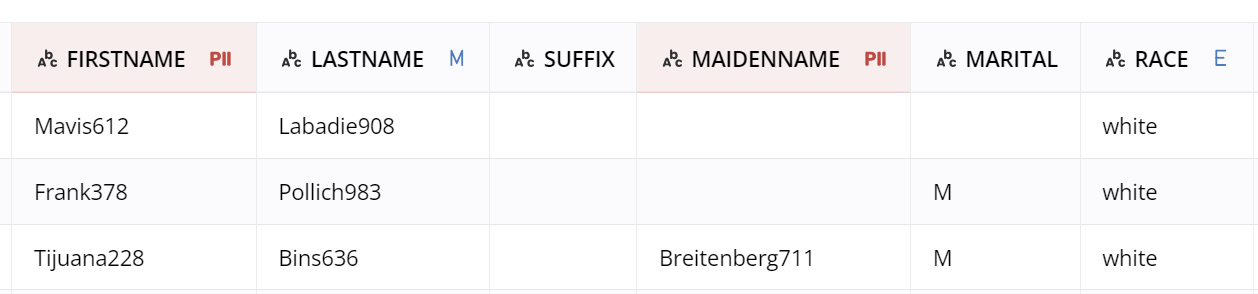
* Red sensitive column headers have no Mock generator, Mask, Calculated column, or Exclude applied.
Columns "FIRSTNAME" and "MAIDENNAME" are detected as sensitive, but have no generator applied.
* An exclamation mark (!) appears beside a table with sensitive columns in **Duplicate** mode and no Mock generator or Exclude applied. Duplicating these columns can unintentionally share sensitive data. To avoid this:
1. Apply a Mock generator.
2. Exclude the sensitive column or columns.
The exclamation mark identifies tables requiring de-identification. De-identification means mocking or excluding sensitive columns. Unhandled sensitive columns have a red **Sensitive** label.
## Limitations
* **Scanner accuracy** depends on metadata, data, and entity type. Descriptive names such as `FirstName` improve sensitivity detection.
* **Multiple detections** are possible in one column. The highest-scored entity is not always correct. This can misidentify a non-sensitive item or entity type.
* **Selecting entity types:** You cannot select which sensitive entities to scan for. See [Supported sensitivity entities](/configure-a-data-generation-job/manage-personally-identifiable-information-pii/supported-pii-entities.md).
These limitations help you use the sensitivity scanner effectively.
{% hint style="info" %}
Caution: The sensitivity scanner supports initial sensitive data detection. It might not find all sensitive data. Review results thoroughly.
{% endhint %}
---
# Agent Instructions
This documentation is published with GitBook. GitBook is the documentation platform designed so that both humans and AI agents can read, navigate, and reason over technical content effectively. Learn more at gitbook.com.
## Querying This Documentation
If you need additional information that is not directly available in this page, you can query the documentation by asking a question.
Perform an HTTP GET request on the following URL with the `ask` and `goal` query parameters:
```
GET https://docs.syntho.ai/configure-a-data-generation-job/privacy-dashboard/automatic-pii-discovery-with-pii-scanner.md?ask=&goal=
```
`ask` is the immediate question: it should be specific, self-contained, and written in natural language.
`goal` is what the user is ultimately trying to achieve, the reason they need the answer. Sharing it helps GitBook give you a better, more relevant answer. A goal is most helpful when it describes the outcome the user wants rather than restating the question. For example, with `ask=how do I create an API token`, a goal like `automate deployments from our CI pipeline` lets GitBook tailor the answer to that use case.
The response will contain a direct answer to the question and relevant excerpts and sources from the documentation.
Use this mechanism when the answer is not explicitly present in the current page, you need clarification or additional context, or you want to retrieve related documentation sections.
.png)