

Step 1. Validate source db
This step checks whether your workspace still matches your source database schema.
Source schemas change over time. Tables can be added or removed. Column types can change. Constraints can be updated.
Sync updates your workspace to match the source schema. It does not change data or schema in your source database.
Sync can remove or reset column generators when they become incompatible. Re-check your generator setup after syncing.
Open validation
Select Generate in the Job configuration panel.
Syntho opens the wizard on Source Database Validation.
Select Validate to compare your workspace schema against the source database. This is the same action as that would be triggered when you immediately select Sync in the top menu.
Validate detects schema drift. It does not apply changes.
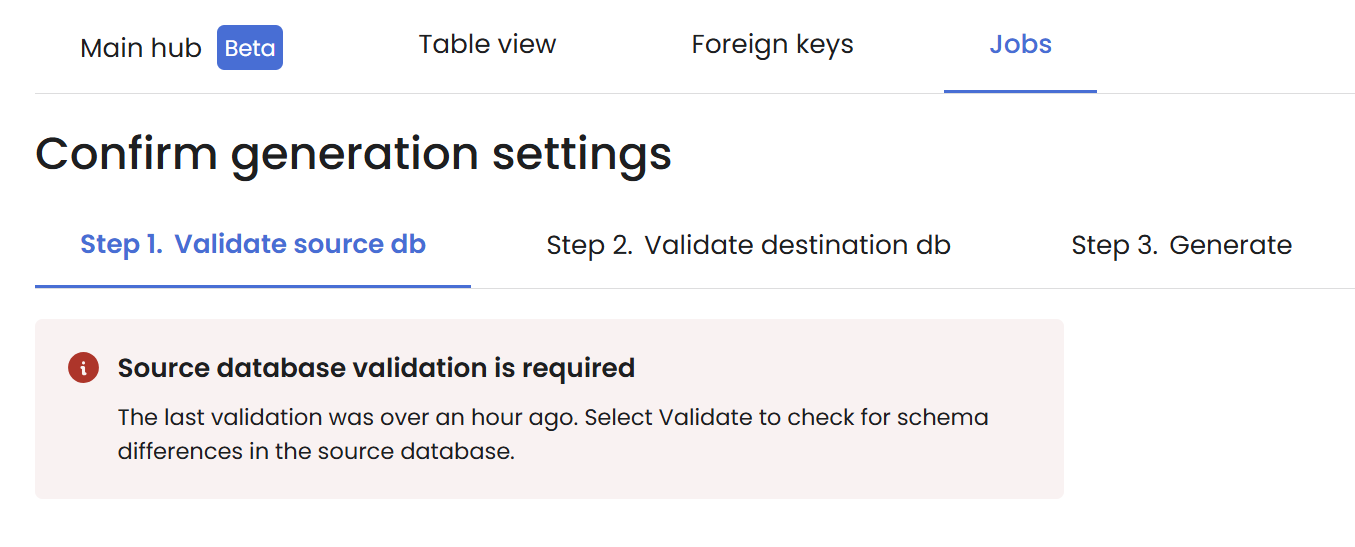
Sync schema changes

Pick one of these actions:
Apply and Continue syncs your workspace immediately and keeps you in the wizard.
Review changes opens Table view so you can inspect the schema changes and generator impact. Select Apply to sync or Cancel to discard.
Your workspace must be in sync to proceed with generation.

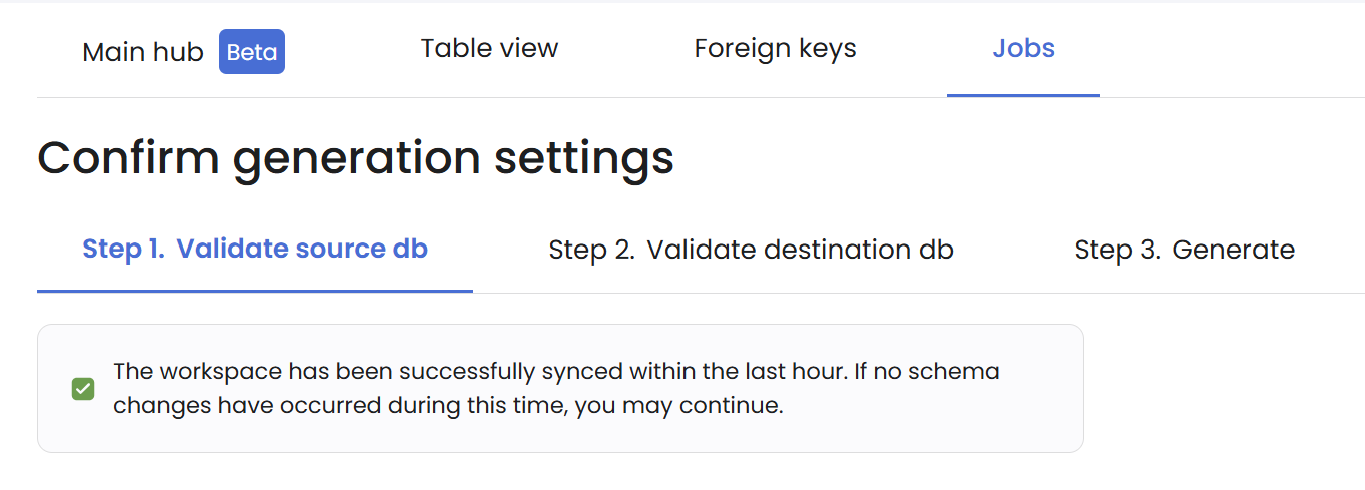
Source schema synchronization
If source schema issues are left unresolved, your generation job can fail at runtime.
Syntho can automatically identify and sync the following schema changes.
Source table changes
The primary key of the table has changed.
The primary key of the table has been removed.
A primary key has been added to the table.
A foreign key has been removed from the table.
A foreign key has been added to the table.
The unique constraints for the table have been updated.
The check constraints for the table have been updated.
The table was removed.
Source column changes
The data type of the column has been updated.
The column is now auto-incrementing.
The column is not auto-incrementing anymore.
The maximum value of a column has changed.
The maximum length of a column has changed.
The default of the column has been updated.
The column is non-nullable now.
The column is now nullable.
The column is not unique anymore.
The column is now unique.
The column is not part of the primary key anymore.
The column is now part of the primary key.
The column is not part of a foreign key anymore.
The column is now part of a foreign key.
The column is not part of a composite unique constraint anymore.
The column is now part of a composite unique constraint.
The generator of the column has been removed.
Next: continue to Step 2. Validate destination db.
Last updated
Was this helpful?